Introduction
A routine business inquiry can be the first step in a carefully planned phishing attack.
In this case, an employee at an organization received a seemingly harmless Request for Quote (RFQ) inquiry. The sender asked to be directed to the appropriate contact person for an official quotation. After the employee replied, a follow-up arrived several days later, appearing to continue the same business conversation.
This time, however, the message included a PDF presented as an official RFQ. The document contained an embedded link that led through multiple redirections to a fake Microsoft OneDrive page designed to trick the recipient into authorizing access to their Microsoft account.
The attack demonstrates how threat actors can use ordinary business workflows, familiar sender names, and seemingly legitimate documents to build trust before delivering a malicious link.
Understanding the Attack: RFQ Phishing as a Form of BEC
Request for Quote (RFQ) phishing targets organizations that regularly receive inquiries from potential customers or business partners. Rather than beginning with an obvious malicious attachment or an urgent request, the attacker initiates contact with a routine business inquiry.
This approach can be considered a form of Business Email Compromise (BEC). It exploits the trust associated with business correspondence and the expectation that employees will respond to legitimate commercial opportunities.
The initial message had no suspicious links or attachments. Its purpose is to start a conversation and identify the right person to engage with. Once the recipient responds, the attacker can use that interaction to make a subsequent message appear more credible.
How the RFQ Phishing Attack Unfolded
The incident involved four stages:
Stage 1 – Bait: A Routine RFQ Inquiry
An email was sent using a business-related display name. The message contained a generic RFQ inquiry, asking the recipient to provide the correct contact person for an official Request for Quote.
The email did not contain an apparent malicious attachment or link. It appeared to be a routine business inquiry.
Stage 2 – Engagement: The Employee Responds
The employee replied to the inquiry.
Although the initial inquiry came from one domain, the employee’s reply was addressed to an email address on a different domain, associated with the same name.
This detail became important when the follow-up arrived.
Stage 3 – Delivery: The Follow-Up with the RFQ Document
Several days later, a message arrived from the second email address, associated with the same name and appearing to continue the previous conversation.
The message quoted the employee’s actual response and included her full business signature, making the exchange look like an ongoing business discussion.
It also introduced an expanded product scope and requested a formal quotation. Attached were a PDF presented as the official RFQ, a company profile, and a business license for verification purposes.
Unlike the initial inquiry, this message contained the malicious content: a link embedded in the PDF.
Stage 4 – Redirection: From PDF to a Fake Microsoft OneDrive Page
The link embedded in the PDF passed through multiple redirections before reaching a phishing page impersonating Microsoft OneDrive.
The page displayed a fake shared document and a one-time verification code. Clicking “Verify Your Identity” opened Microsoft’s legitimate device authentication page, prompting the recipient to enter the code and authorize access.
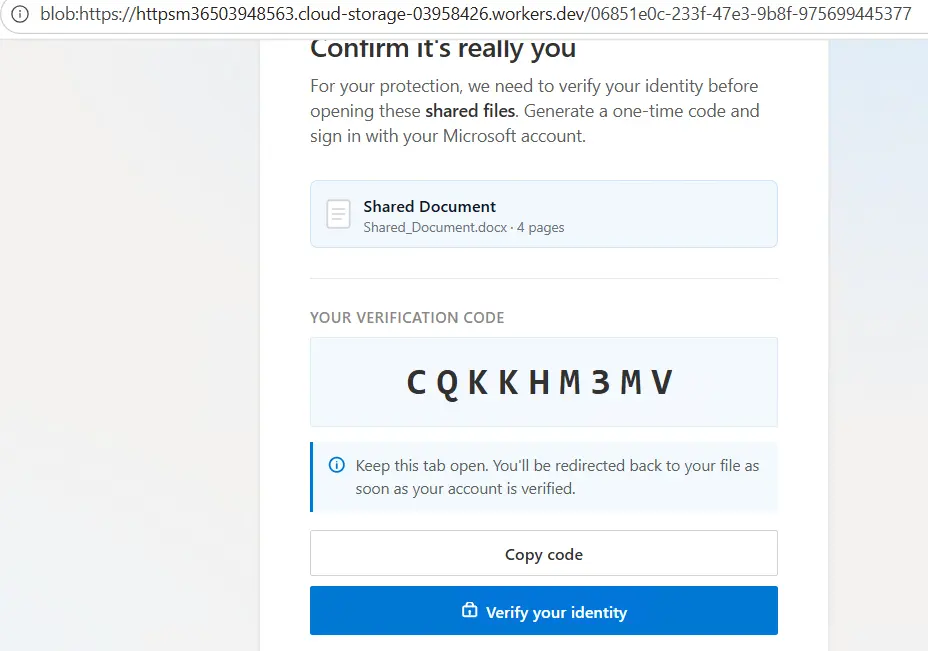
This is consistent with a Device Code Phishing attack. If the recipient completes the authentication process, the attacker may obtain tokens that provide access to the victim’s Microsoft account without collecting their password.
Techniques That Made the Attack More Convincing
Several techniques worked together to make this attack more difficult to recognize.
1. Payload-less First Contact
The initial email contained no apparent malicious content. Its purpose was to identify a responsive contact and establish an email conversation before the malicious content was introduced.
2. Sender Switching
The initial inquiry and the follow-up containing the malicious PDF came from two different domains.
This separation is important because blocking the first sender alone may not prevent the follow-up from reaching the recipient.
3. Authenticated Sending from a Legitimate Domain
The follow-up was sent through the domain’s Microsoft 365 infrastructure and successfully passed SPF and DMARC authentication. The headers also show submission through Exchange, indicating that the message originated from within the domain’s email environment.
This is consistent with a potentially compromised mailbox.
4. Trust by Prior Correspondence
The employee had already replied to the second email address. The follow-up appeared to be part of an existing business conversation, leveraging the trust recipients may place in previous correspondents.
5. Genuine Thread Content as a Lure
The follow-up was a correctly threaded reply containing the employee’s actual response and full business signature, unlike typical fake W-9 or receipt lures written from scratch.
6. Identity Mismatch
The same persona and job title appear on both domains, and neither domain matches the claimed company. This is the main indicator a reader can spot.
7. Image-Only PDF with a Large Clickable Area
The attached PDF consisted of an image rather than searchable text. A link covered a large portion of the page, making it difficult to identify the destination through text-based attachment inspection alone.
8. Abuse of Legitimate Web Infrastructure
The redirection chain passed through websites using WordPress infrastructure before reaching the final phishing destination.
Using third-party websites as intermediate destinations can help attackers route victims toward malicious content without relying solely on newly registered or obviously suspicious domains.
9. Scanner Evasion
A redirector with a browser fingerprinting challenge was part of the chain, designed to serve the phishing page to real users while potentially preventing automated scanners from accessing it.
MITRE ATT&CK Mapping
The attack incorporates several techniques that can be mapped to the MITRE ATT&CK framework:
- T1598 – Phishing for Information: The initial inquiry was likely used to gather information about the appropriate contact within the target organization.
- T1566.001 – Phishing: Spearphishing Attachment: A PDF attachment containing an embedded malicious link was used to deliver the phishing content.
- T1566.002 – Phishing: Spearphishing Link: The embedded link led to a phishing page that initiated a Device Code Phishing flow, attempting to trick the recipient into authorizing access to their Microsoft account.
- T1684.001 – Social Engineering: Impersonation: The same name and job title appeared in the signatures of emails sent from different domains. The final page also impersonated Microsoft OneDrive to make the interaction appear legitimate.
A Broader Campaign, Not an Isolated Incident
This is a campaign, not a single email. In the last 30 days, the Stage 1 sender wrote to dozens of organizations protected by Trustifi, using rotating RFQ subject lines and similar messaging. Most of these emails were quarantined by Trustifi before reaching their intended recipients.
How Trustifi Caught the Attack
The follow-up email passed sender authentication checks and came from an address already listed as a known contact. However, Trustifi did not rely on these signals alone to determine whether the message was safe.
The platform analyzed the PDF attachment, extracted its embedded URL, and followed the redirection chain. This revealed a phishing page protected by a browser fingerprinting challenge, which was designed to make automated analysis more difficult.
By analyzing the link beyond the initial attachment, Trustifi identified the malicious destination and flagged the email as phishing.
Recommendations: How to Reduce the Risk of RFQ Phishing
Organizations can reduce exposure to this type of attack by combining employee awareness with layered email security controls.
- Verify sender identity: Check the sender’s email address and domain against the company they claim to represent. Do not rely on the display name alone.
- Review sender changes: Verify unexpected changes in email addresses or domains through an independent communication channel.
- Treat unexpected documents with caution: Do not assume RFQs, company profiles, or business licenses are safe just because they appear relevant.
- Inspect links in attachments: PDFs and other documents can contain links to phishing pages, even when they look legitimate.
- Be cautious with device authentication requests: Never enter a verification code unless you initiated the sign-in process and recognize the requesting application or device.
- Use layered email security: Analyze attachments, extract embedded URLs, and inspect destination pages and redirection behavior.
See How Trustifi Stops Multi-Stage Phishing
RFQ lures, sender switching, and device code phishing are designed to slip past filters that stop at sender reputation or the first link. Trustifi’s Inbound Shield analyzes image-based attachments, follows embedded links through every redirect, and catches compromised-account activity before it reaches your users.
Want to see how Trustifi would handle an attack like this in your Microsoft 365 or Google Workspace environment? Book a demo with our email security team today.