New plain-language banners in Inbound Shield help users understand email risk at a glance
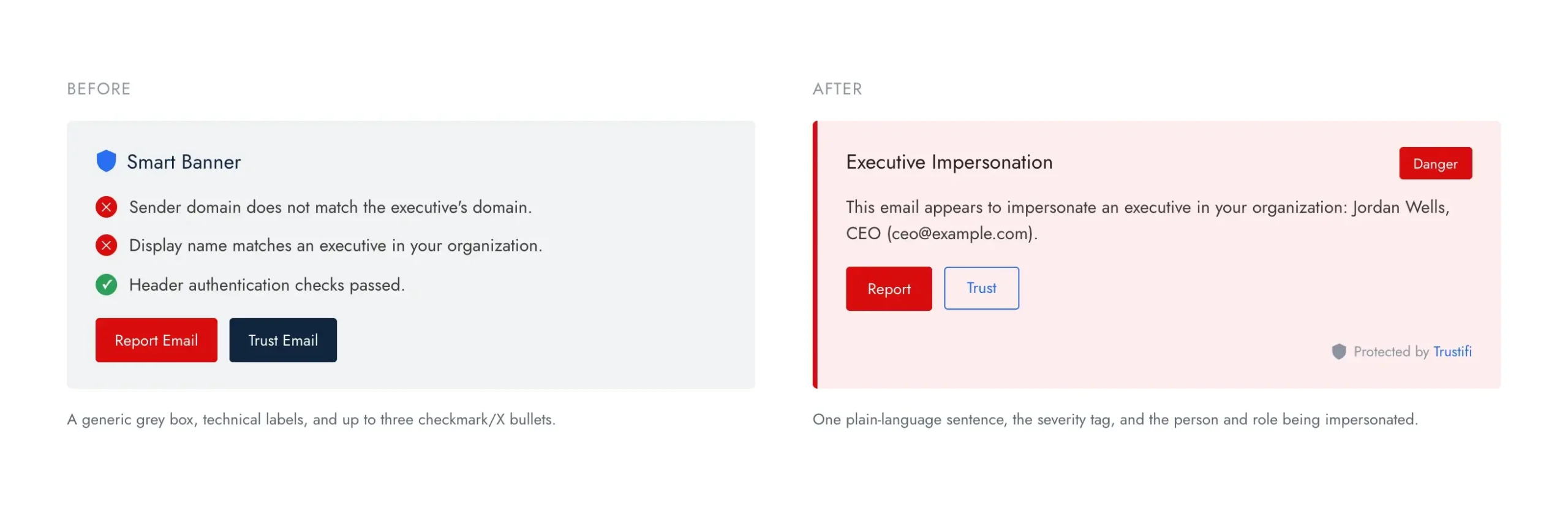
Trustifi has redesigned Smart Banners in Inbound Shield to explain email security findings more clearly. The updated banners pair a cleaner card design with plain-language guidance and four severity levels: Danger, Caution, Informational, and Trusted.
Detection and delivery decisions are unchanged. The redesign improves how Trustifi communicates findings on messages delivered to the inbox.
Understand email risk at a glance
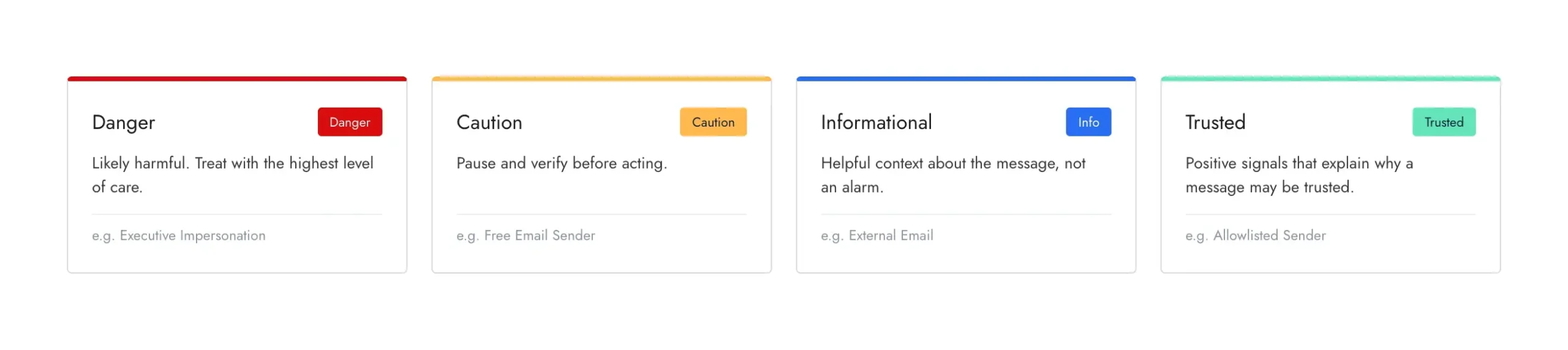
Each Smart Banner identifies what Trustifi found and explains it in one plain-language sentence. The banner displays the highest-severity finding associated with the message:
- Danger: Likely harmful. Treat with the highest level of care.
- Caution: Pause and verify before acting.
- Informational: Helpful context about the message, not an alarm.
- Trusted: Positive signals that explain why a message may be trusted.
Security guidance where users need it
Smart Banners reinforce security awareness during everyday work. A banner can call attention to impersonation, suspicious links, an external sender, or a free-email domain while the employee is evaluating the message. When relevant, it can also identify details such as the sender, reply address, or person being impersonated.
The updated language is written for the person reading the email, rather than for a security specialist. Users receive the relevant context directly in the banner without having to interpret technical labels or follow a separate Learn More link.
Improved previews and rollout controls
The Trustifi Admin Portal now includes previews for Danger, Caution, Informational, and Trusted banners. Administrators can review how each severity level will appear with their current settings before expanding the experience to users.
Organizations can enable Smart Banners for all mailboxes or begin with a smaller group. Administrators can also control whether banners appear on internal or contact emails, whether users can report or trust messages, whether positive feedback appears, and whether the Trustifi footer is displayed.
Learn more about Smart Banners
Review the Smart Banners configuration guide for rollout instructions and available settings. Existing customers may also want to update internal training materials or documentation that shows the previous banner design.