Investigate email security issues across managed customer accounts with Claude, ChatGPT, or another compatible AI assistant.
Today we’re introducing Trustifi MCP, a new way for managed service providers (MSPs) to investigate email security issues and request actions across customer accounts from one AI assistant connection. When a customer asks why an email didn’t arrive, your team can trace its delivery, check whether it was quarantined and why, and request a release after reviewing the evidence, all in the same conversation.
Your technicians can name the customer, ask a question in plain language, and pull the Trustifi records they need without opening each customer’s account in the console. The same workflow can help them see who clicked a rewritten link or review an account takeover incident.
MCP is an open standard for connecting AI assistants to external systems. Trustifi’s Model Context Protocol (MCP) server connects your assistant to the Trustifi data and tools your account is authorized to use.
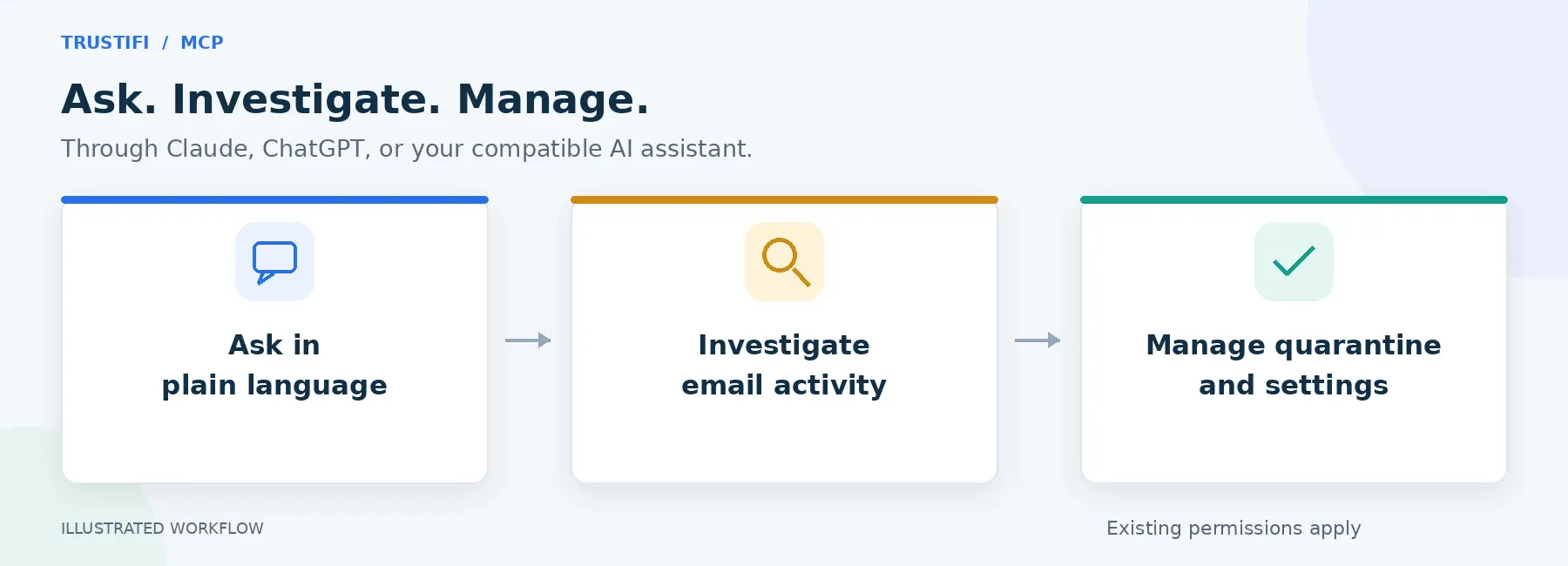
Investigate across customer accounts
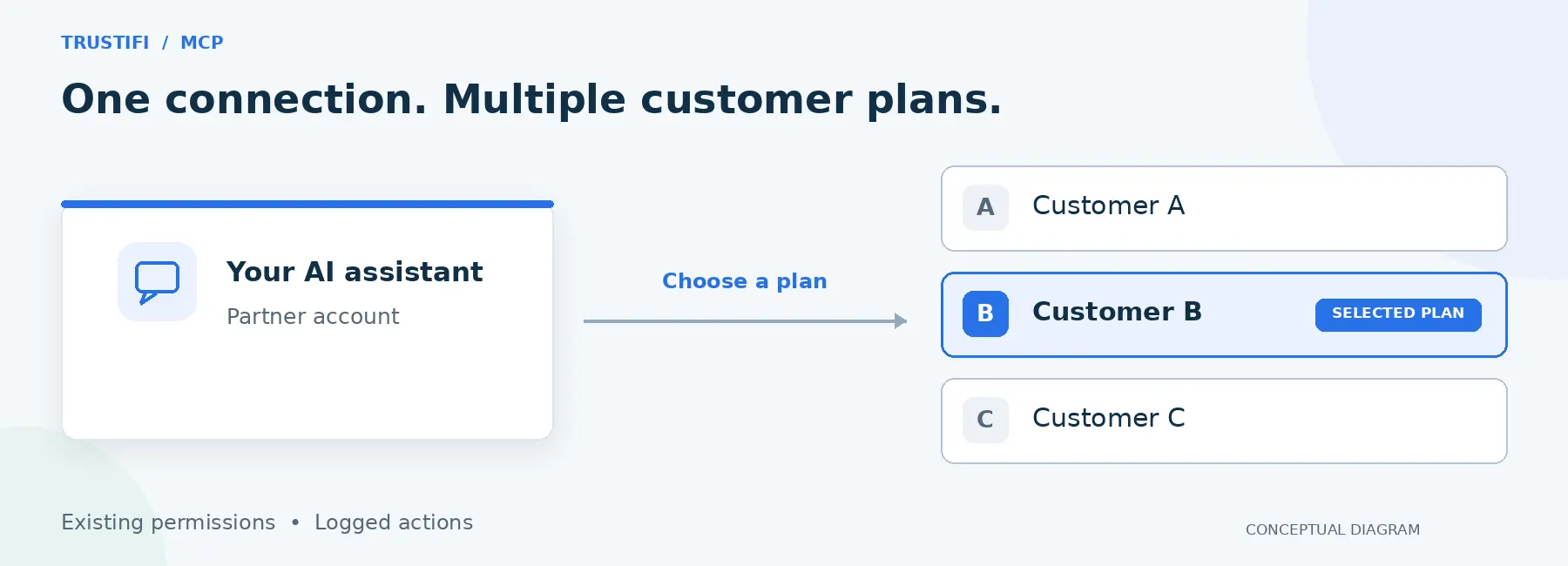
When delivery tickets come in from several customers, your team can work through them using the same Trustifi MCP connection.
Ask the assistant to list your managed plans, then identify the customer by its plan admin email. You can use the same connection to review quarantine or check allow lists for each customer you manage.
Specify the customer’s plan admin email so the assistant searches the right account. Without a managed-plan target, tools run against your own plan. Actions on customer plans are logged under your partner account.
Start with the question you need answered
A useful investigation starts with a focused request. Include a time window and the information you want to review:
“Show the emails quarantined in the last 24 hours and explain why each one was held.”
The assistant can search quarantine and retrieve records with threat indicators, timestamps, and message metadata. For inbound investigations, these tools draw on Inbound Shield findings to give your team context for its review.
You can also trace delivery, check who clicked a rewritten link, search archived inbound email, or review Account Takeover Protection incidents. These questions draw on different Trustifi records, helping your team examine delivery, user activity, and account security.
Follow the evidence through to a decision
Finding a message is only part of resolving a support request. Your team still needs to assess the findings and decide whether a change is appropriate.
If your review supports releasing a quarantined email, you can request that action in the same conversation. The assistant can use multiple Trustifi tools to locate the message, retrieve its quarantine details, and submit the release request.
Beyond quarantine, administrators can update allow and block lists, manage inbound reviewers, and change notification settings. The available tools let your team handle routine configuration tasks alongside investigations.
This connects the question, supporting records, and requested action in one workflow. Your team remains responsible for reviewing the evidence and approving the appropriate next step.
Keep access and approvals in your control
The assistant acts with your Trustifi account’s permissions. It can only access information and perform actions that your account is authorized to use.
The OAuth connection separates read and write access. The setup guide describes approval before each tool call in Claude and before write actions in ChatGPT, depending on client settings. Administrators can review connected applications and revoke access from Trustifi’s MCP settings.
Tool results are shared with the AI provider you connect. Review your organization’s data-handling requirements before enabling the integration, particularly where email metadata and quarantine details are concerned.
Get started with Trustifi MCP
Trustifi MCP requires a Pro plan, a Trustifi admin account, and a compatible AI assistant. Your assistant’s workspace must also permit custom connections.
Open Admin Center > Integrations > MCP for setup instructions. Start with a read-only task to become familiar with the results, then review your assistant’s approval settings before requesting changes.
Read the Trustifi MCP setup guide for connection instructions, permissions, and available tools.
Not a Trustifi customer yet? Request a demo to explore how the platform can support your team’s email security and administration needs.